BioVisuals home

BIOVISUALS DATALABBETA

Your Data. Your Analysis. Your Scientific Figures.

Analyze experimental data, apply suitable statistical methods, create clear scientific charts, and use them in your BioVisuals figure workflow.

DataLab opens from “Start with Data Analysis” on your dashboard.

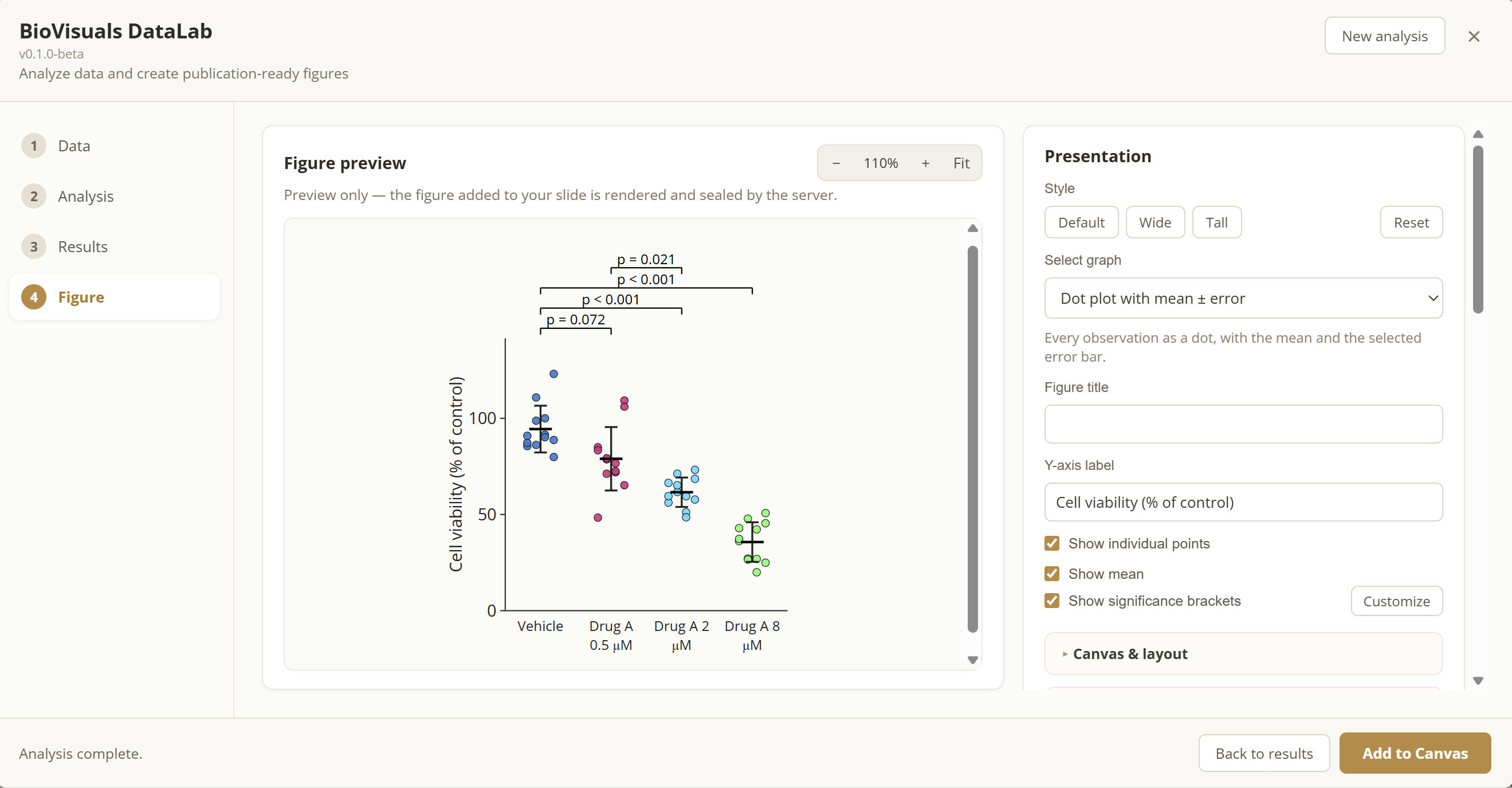
The BioVisuals DataLab Figure step: a dot plot of cell viability (% of control) for Vehicle and Drug A at 0.5, 2 and 8 µM with significance brackets, beside presentation controls for style, graph type, figure title, axis label and displayed elements, and an Add to Canvas button.

Explore What You Can Create

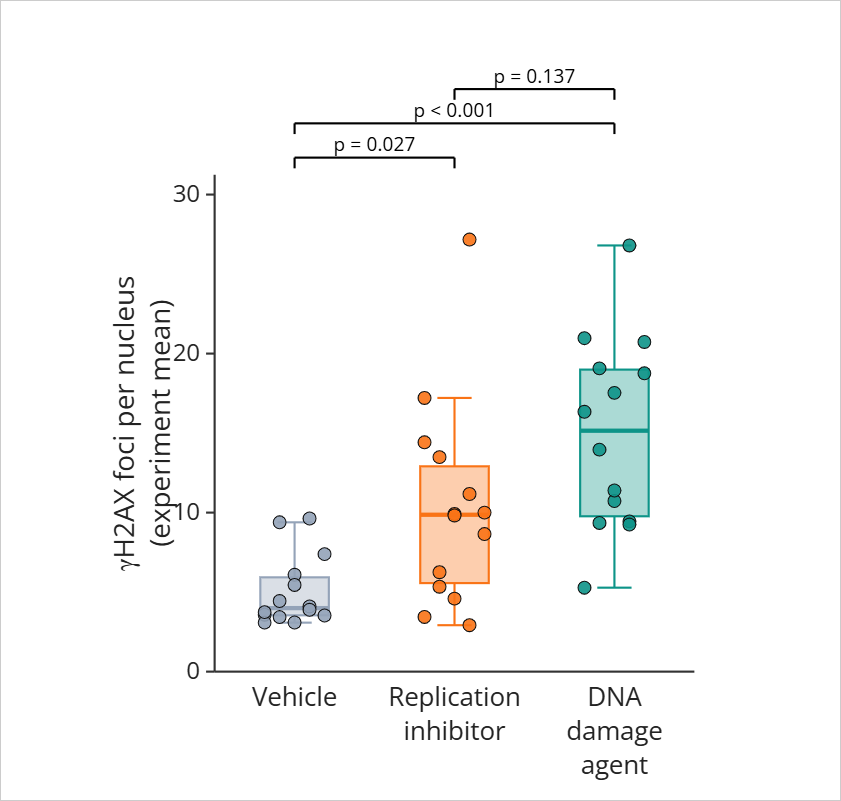
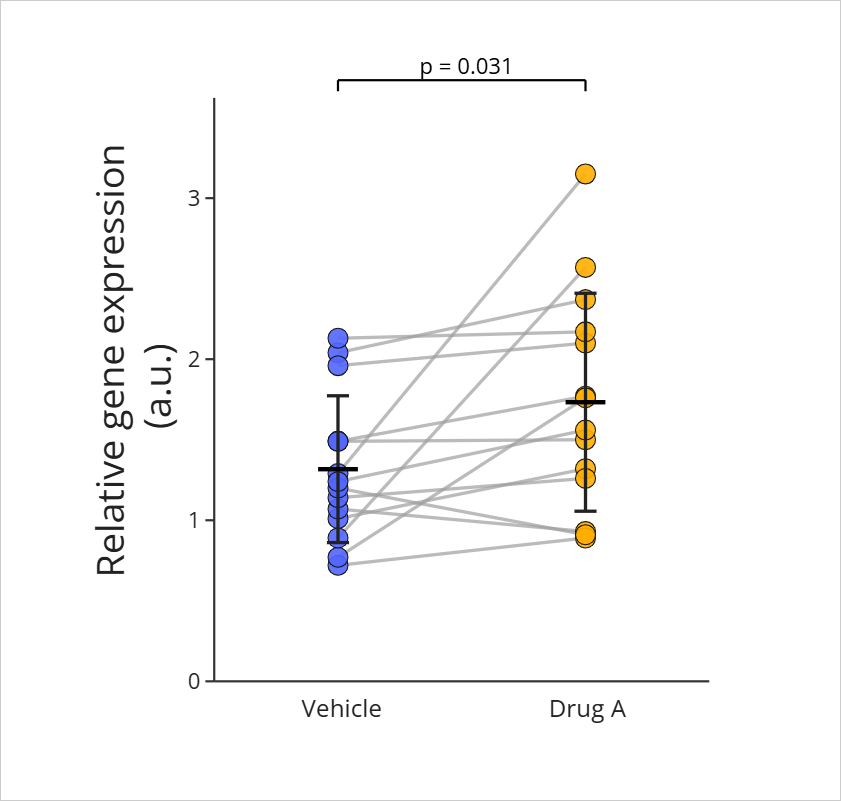
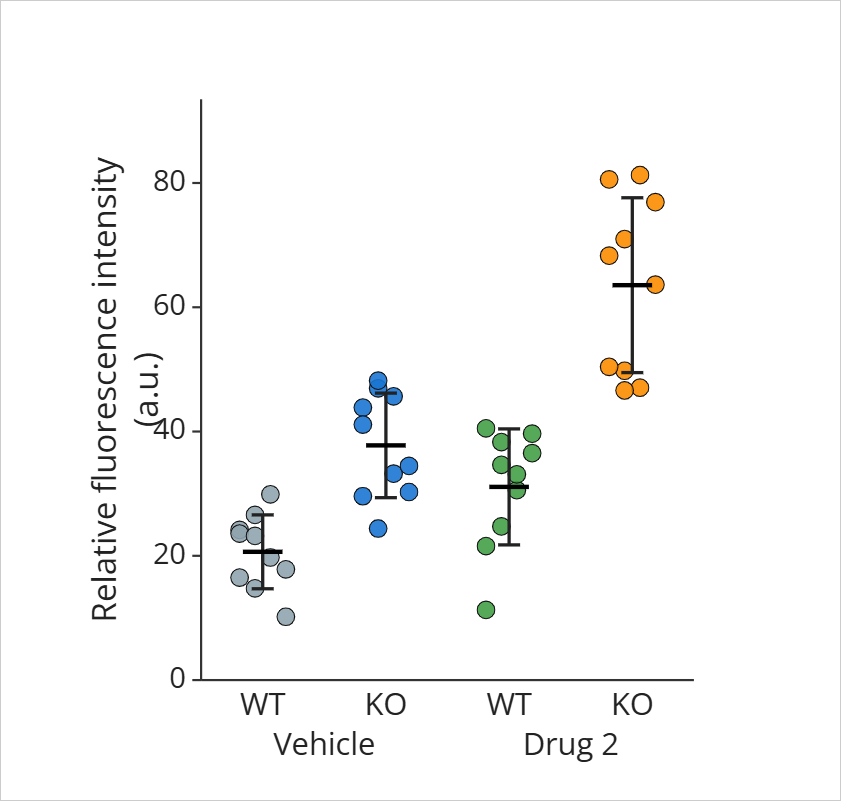
Scientific charts created in BioVisuals DataLab, shown exactly as exported.

All examples use simulated data created for demonstration. They show what DataLab charts look like and are not experimental results.

From Experimental Data to Scientific Figures

Four connected steps take you from your measurements to a figure in BioVisuals Studio.

  1. Step 1

    Import Your Data

    Enter measurements, paste spreadsheet values, or upload CSV/XLSX files.

  2. Step 2

    Analyze

    Configure the experimental design and select a supported statistical method.

  3. Step 3

    Visualize

    Generate a chart from your analysis and customize its appearance.

  4. Step 4

    Create Your Figure

    Add the chart to BioVisuals Studio and build it into your scientific figure.

From DataLab to BioVisuals Studio

Combine scientific charts with biological illustrations to communicate your experimental findings.

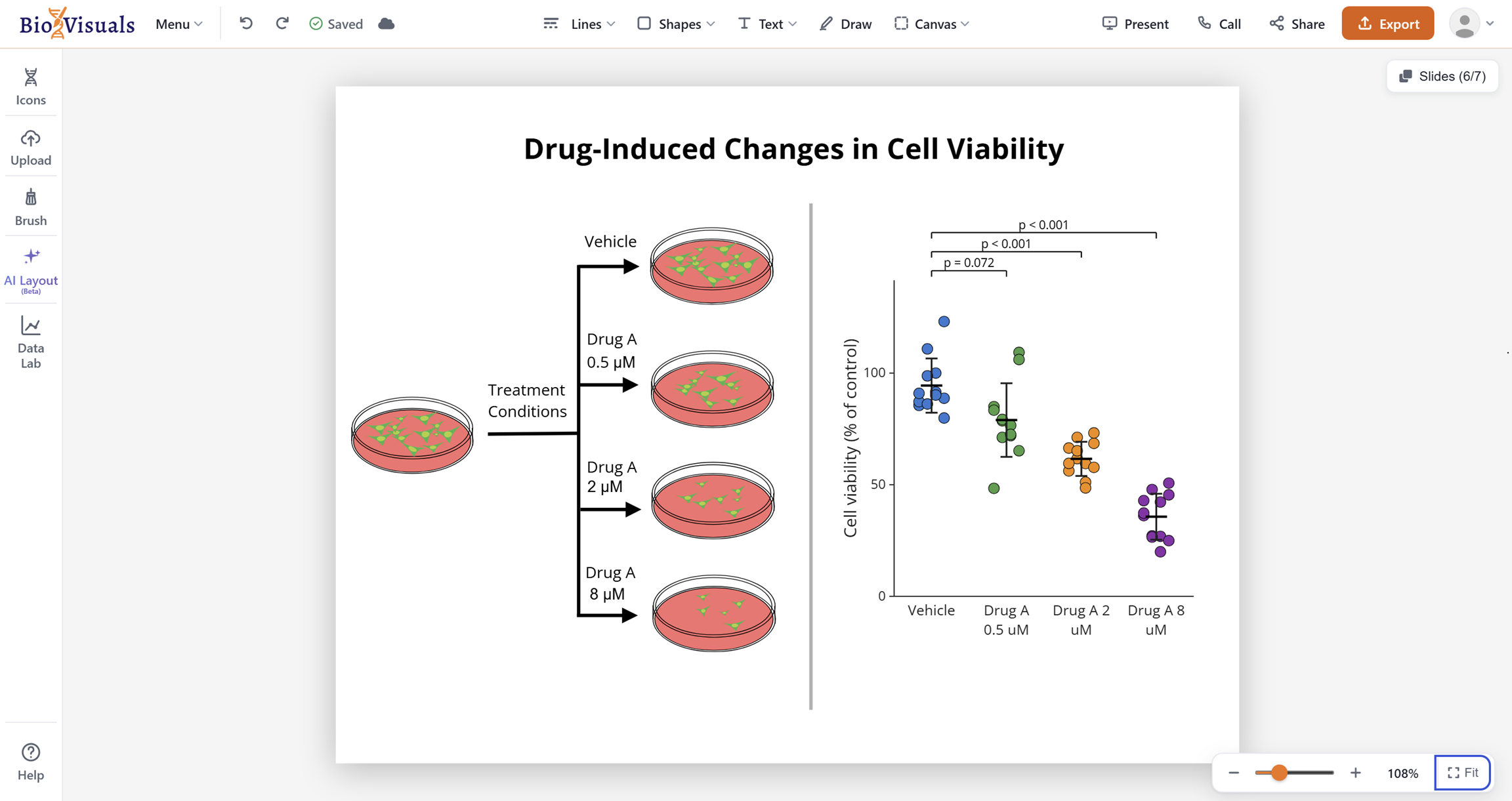
BioVisuals Studio canvas with a figure titled “Drug-Induced Changes in Cell Viability”. Schematic culture dishes show the treatment conditions, Vehicle and Drug A at 0.5, 2 and 8 µM, beside the DataLab dot plot of cell viability (% of control) for the same groups with its significance brackets.
Demonstration figure using simulated data and schematic illustrations.View the Studio figure at full size (opens in a new tab)

Understand the Analysis Behind Your Figures

Explore descriptive statistics, review your selected analysis methods, and examine statistical results before creating scientific figures.

  • Descriptive statistics

    Explore group summaries, sample sizes, and variability to better understand your experimental data.

  • Statistical comparisons

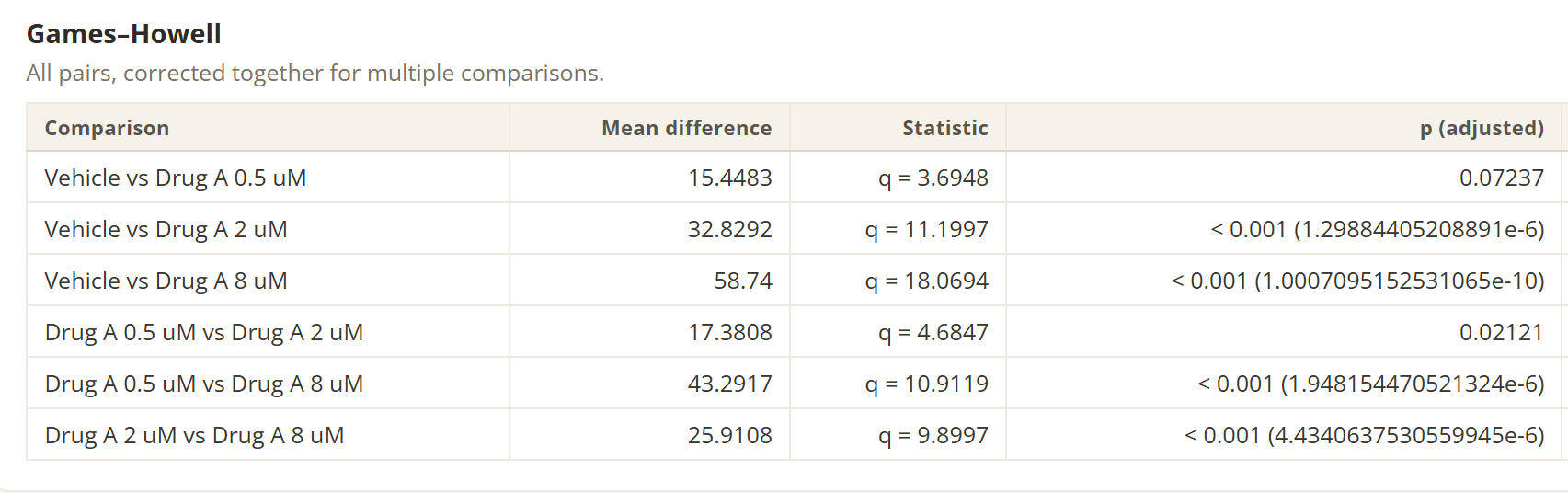
    Compare multiple groups with Welch’s one-way ANOVA and Games–Howell pairwise comparisons, then examine the results before you plot them.

  • Chart customization

    Adjust the appearance of your chart before adding it to a BioVisuals Studio figure.

Select the statistical method that fits your experimental design, then explore the results and comparisons generated by DataLab.

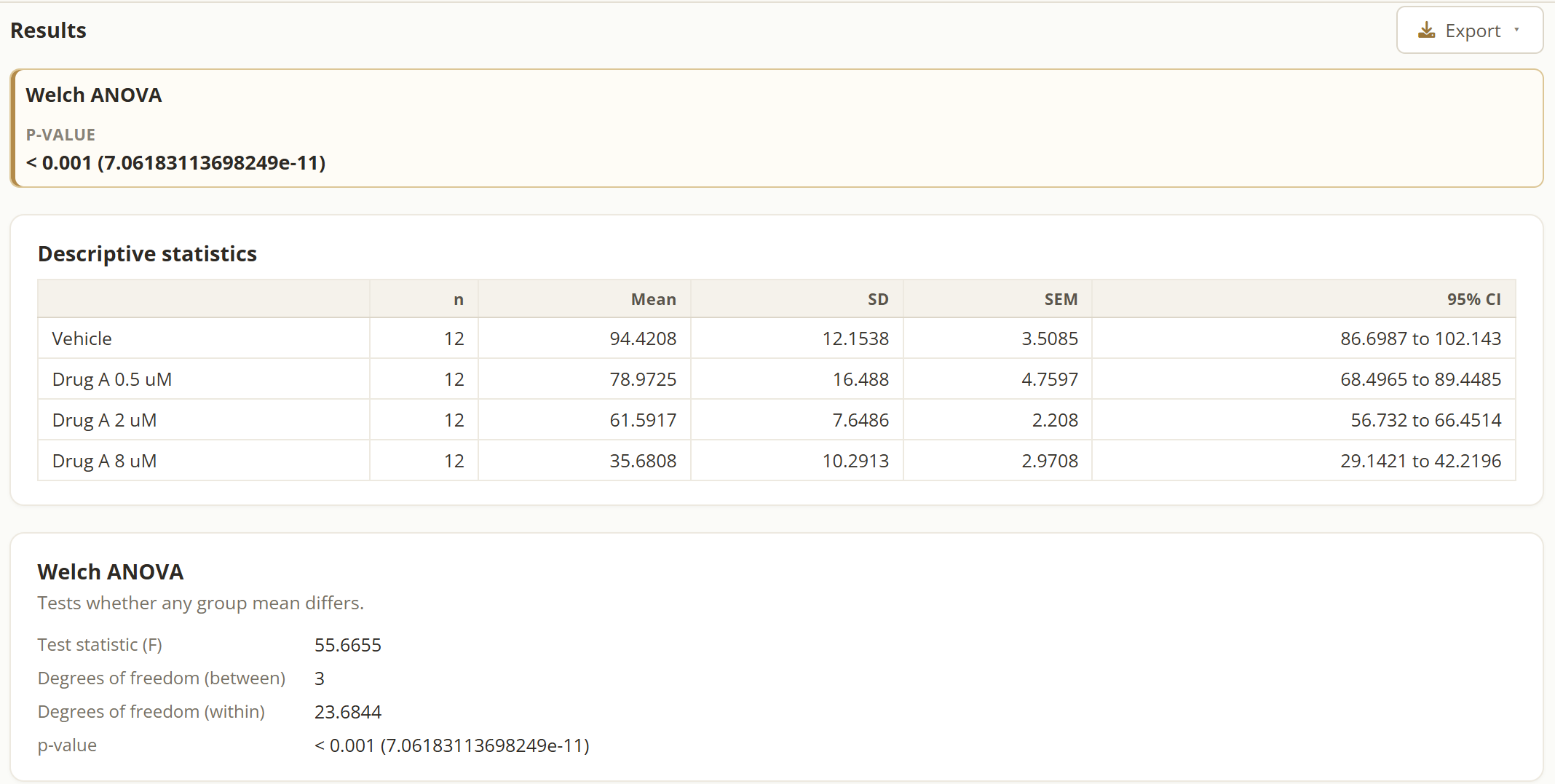
DataLab results for the simulated cell viability example. A Welch ANOVA summary reports a p-value below 0.001. A descriptive statistics table lists n, mean, SD, SEM and 95% CI for Vehicle and Drug A at 0.5, 2 and 8 µM, with 12 samples per group. A Welch ANOVA panel reports the test statistic (F), the degrees of freedom between and within groups, and the p-value.
Results from the simulated cell viability example, exactly as exported by DataLab.View the full Results screenshot (opens in a new tab)

Real Scientific Questions. Clearer Data Analysis.

Example experimentSimulated data

How Does Drug Treatment Affect Cell Viability?

Scientific question
Does cell viability change as the concentration of Drug A increases, compared with vehicle-treated cells?
Experimental groups
Vehicle, Drug A 0.5 µM, Drug A 2 µM and Drug A 8 µM, with viability expressed as a percentage of control.
Selected analysis
Welch’s one-way ANOVA across the four groups, followed by Games–Howell post-hoc pairwise comparisons.
Role of the chart
Every data point stays visible beside each group’s summary and error bars, with the comparisons against vehicle annotated on the figure.

This example uses simulated data created for demonstration. It illustrates the analysis workflow and is not an experimental result.
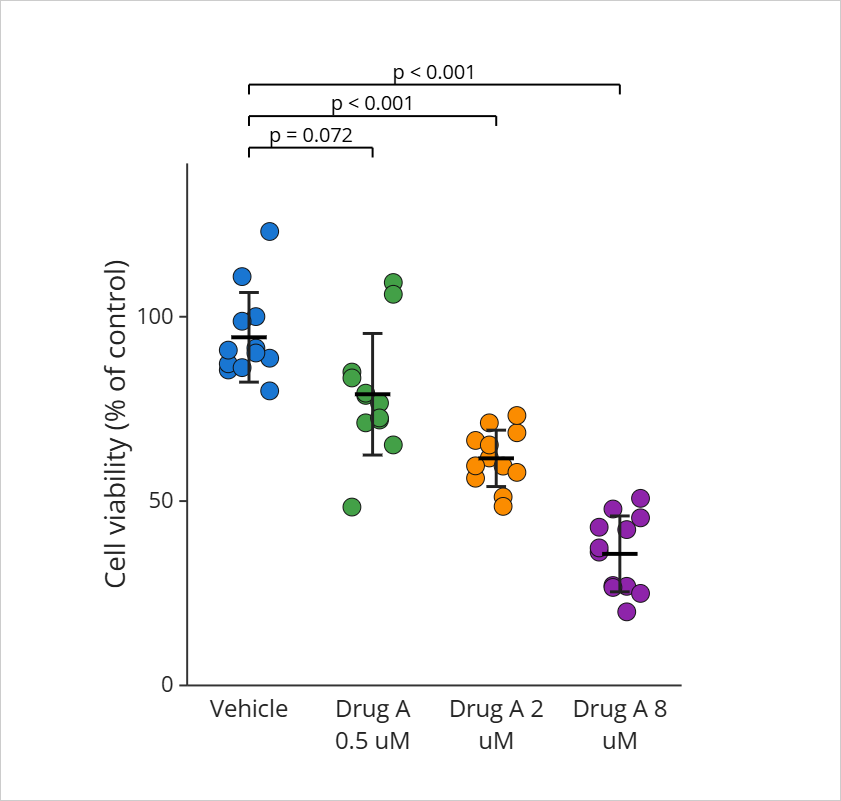
Dot plot of cell viability (% of control) for Vehicle and Drug A at 0.5, 2 and 8 µM, each group with a summary line and error bars. Brackets comparing each concentration with Vehicle are annotated p = 0.072, p < 0.001 and p < 0.001.
Figure created in BioVisuals DataLab from simulated data.View the figure at full size (opens in a new tab)

See DataLab in action

Watch the BioVisuals DataLab demo to see the workflow from experimental data to a scientific chart.

Turn experimental measurements into clear scientific visuals.

Analyze experimental data in DataLab and create scientific charts, then continue in BioVisuals Studio.